Govee LED strip lights are one of the best Lights in the market when it comes to Lighting up your space. But as with other devices, these lights can malfunction as well like flickering, buzzing, and having inconsistent colors. When they do, it’s important to know how to reset Govee LED strip lights. This guide will provide step-by-step instructions on how to reset your Govee LED strip lights. Resetting LED strip lights sometimes becomes a headache because sometimes your every effort goes in vain. Therefore, it’s important to know the original and effective method to reset Govee LED lights.
Introduction to Resetting LED Strip Lights
Resetting is a simple process if you do it in the right way. Resetting your Govee LED strip lights will give you relief from many problems you are encountering. These include Flickering, buzzing, and connectivity issues and well. Let’s move on to the real question of how to reset your Govee LED strip lights.
How to reset Govee LED strip lights?
To resetting your Govee LED strip lights all you need to do is just follow the simple process.
Here is what you will need
- Govee LED strip light and controller.
- A pin or a small pointed object.
Step-by-step process to reset Govee LED strip lights
The first step is to disconnect the LED strip lights from the power source. Unplug them from the wall outlet and remove the batteries from the remote.
Use Controller
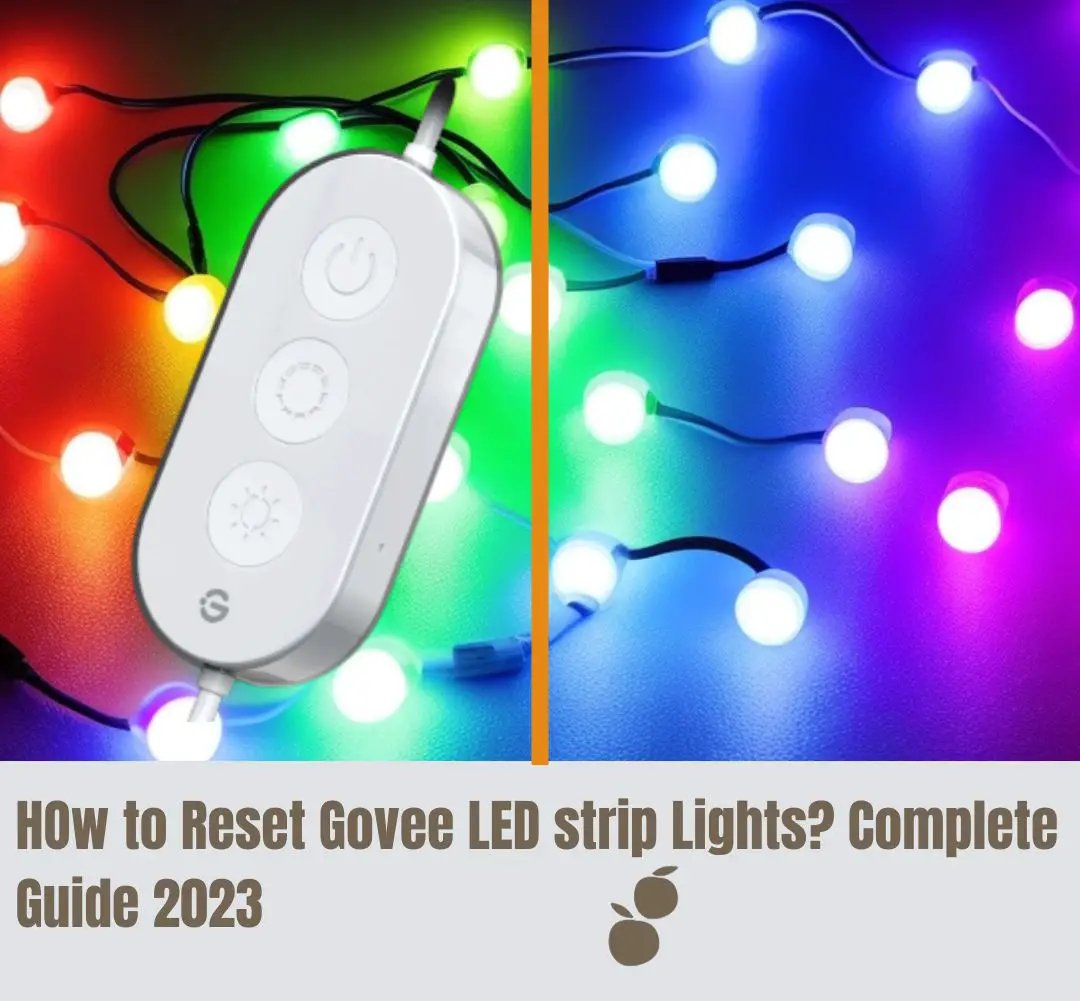
The second step is to find the controller of your Govee LED strip lights. A controller is a small device connected to your LED strip lights directly or via cable. It has buttons for various purposes like the ON/ OFF Button, COLOR, and MODE buttons.
In some models, there is a hole for the reset label as “RESET” in the controller. Look carefully at the controller to find the hole. The reset button is typically located near the connection ports. Now Take a pin or a small, pointed object like a paperclip. Gently insert it into the reset hole.
Press and hold the reset button for about 10-15 seconds. While holding the reset button just plug it back in the power source or insert the batteries into the remote control. While continuing to hold the reset button, watch the LED lights on the strip. They may flash or change colors, indicating that the reset process is in progress. After a few seconds release the reset button. After the reset has been completed, the LED lights should flash or change colors. It may take up to a minute to complete. Now you can reconfigure your settings.
Use Control BOX
If you don’t have a hole for the reset button just use the control box. Turn the power on, press and hold the middle button on the control box four times along with holding the power button at the same time. This will reset the LED strip light and set the default settings.
How to Reset Different Govee LED Models
You can reset various models using the above method. You can reset Govee H6199, Govee H6159, Govee H6072, Govee H6054, Govee H5179 and a lot similar to these. Here are the general steps you need to follow.
Just disconnect your Govee H6199, H6159, H6072, H6054, H5179 from power source. Locate their control box. Turn the power ON, press the middle button on the control box, and hold it for 10-15 seconds. Do it four times make sure you are holding the power button at the same time.
This will reset your LED strip lights.
How to Factory Reset Govee LED Strip Lights
To perform a factory reset you just have to change some steps in the above resetting method.
Here are the steps you need to follow to perform a factory reset.
Disconnect the LED strip light from the power source. Locate their control box. Govee LED lights have a specific sequence to factory reset.
According to Govee LED lights this is the method
Press the middle button on the control box four times while holding the power button. Please try to unplug the light strip for 10 minutes, then re-plug it
Govee Support
This will factory reset your govee LED strip Lights.
Why Your Govee LED Light Strip May Not Be Working
Connectivity Problems:
Connectivity issues can arise if there’s a loose connection between different parts of the LED strip, such as connectors, wires, or adapters. Sometimes, the connection between the LED strip and the controller can also become loose.
Power Issues:
Power problems can result from issues with the power supply, including loose power cables or adapters. Check for any damage to the power supply components.
Remote Control Problems:
Remote control issues can occur if the remote is not functioning correctly or if there’s interference from other devices. Ensure the remote has working batteries and is pointed towards the controller.
Defective Components:
Defective LED chips or damaged components within the LED strip can lead to malfunction. Look for any visible signs of damage or irregularities in the LED strip.
Firmware or App-Related Issues:
If you control your LED strip through a mobile app or firmware, software glitches or outdated firmware can cause problems. Check for app updates and ensure your firmware is up to date.
If your LED strip lights are not connecting with the app try to restart your phone and also turn OFF your LED strip Lights, wait for 10 seconds, and then Turn Them ON. By doing this 3-4 times this problem can be solved.
Troubleshooting Steps:
Here are some steps that will help you troubleshoot these problems.
Check Power Supply:
Ensure the LED strip is properly connected to the power supply. Confirm that the power adapter is plugged into a working outlet. Check for any visible damage to power cables or connectors.
Inspect Connectivity:
Examine the connections between different segments of the LED strip. Ensure they are securely plugged in. Verify that the controller is correctly connected to the LED strip. Look for any loose or damaged wires.

Test the Remote Control:
Check the remote control’s batteries. Replace them if necessary. Make sure there are no obstructions between the remote and the controller. If the remote is still not working, consider testing it with a different LED strip (if available) to rule out remote issues.
Verify Firmware and App Settings:
If your LED strip is controlled through an app, ensure the app is updated to the latest version. Check that your mobile device is connected to the same Wi-Fi network as the LED controller. Verify that the LED strip is correctly added and configured within the app.
Replace Defective Components:
If you suspect that specific LED segments or components are defective, consider replacing them with spare parts if available. Contact Govee’s customer support for guidance on obtaining replacement parts or warranty service if applicable.
Conclusion
Govee LED strip lights offer versatility and convenience. However, even the best technology can face occasional hiccups. By understanding the common issues that can affect your Govee LED light strip and following the troubleshooting steps provided, you can quickly get your lighting system back on track. From checking power supplies to resetting the controller, these steps empower users to tackle problems with confidence. Remember that patience and attention to detail are key when addressing LED strip light issues.
FAQs About Resetting Govee LED Strip lights
What should I do if my Govee LED lights are not responding to the remote control?
If your Govee LED lights aren’t responding to the remote control, check the batteries in the remote, ensure there are no obstructions between the remote and the controller, and refer to the troubleshooting section in the user manual.
Why does the Govee strip light not pair with Bluetooth?
If your Govee LED strip light isn’t pairing with Bluetooth, there could be several reasons. First, ensure that your mobile device has Bluetooth enabled and is within proximity to the LED strip. Check if your LED strip model is Bluetooth-compatible, activate Bluetooth on the LED strip controller and consider turning off nearby devices that might interfere. Reboot both your LED strip and mobile device, update the Govee app, and try forgetting and re-pairing the device on your mobile. If you still encounter issues, clearing the Bluetooth cache (for Android users) or contacting Govee’s customer support for further guidance may help resolve the problem.
What should I do if my Govee LED lights are flickering or displaying unusual colors?
Flickering or unusual colors can result from loose connections or interference. Check the connectivity of your LED strip segments, ensure a secure power supply, and make sure there are no electronic devices causing interference nearby. Resetting your LED strip light can also help you resolve this issue.
What is the difference between a simple reset and a factory reset?
The key difference between a simple reset and a factory reset is the extent of their impact. A simple reset, often referred to as a soft reset, involves restarting a device to resolve minor issues or refresh its current state while keeping user data intact. On the other hand, a factory reset, known as a hard reset, restores the device to its original factory settings, erasing all user data and personalizations.
Why are my Govee LED strip lights not staying in place?
Adhesion issues can occur due to dust or grease on the mounting surface. Make sure to clean the surface thoroughly before applying the LED strip. If needed, use additional adhesive strips or mounting clips for better stability.